Writing Measures in Finale

This time we're going to take things a step further and learn how to write measures in Finale, the leading sheet-music notation software across the Americas.
If you want to become a great musician and an expert in the field, you need to recognize that learning to use Finale is one of your essential tasks.
That's why we'll show you how to write measures in Finale so you'll have what it takes to capture your musical ideas on the page.
Launch Finale
The first step to writing measures in Finale is to launch the program so you can create a new document where you'll write your measures.
If you don't have Finale on your computer yet, we invite you to download it from our post “Download Finale Sheet-Music Editor,” where you'll find the link to download the software along with step-by-step instructions for installing it on your computer.
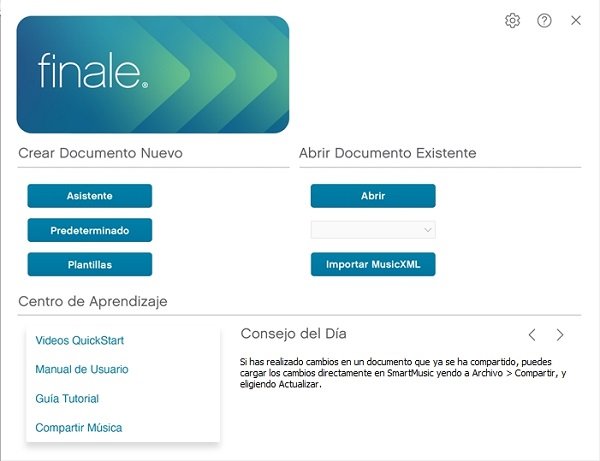
Create a new document with the wizard
Creating a new document in Finale isn't complicated, but if it's your first time, then you should check out our guide on “How to Create a New Document in Finale.”
This step-by-step guide will walk you through creating a new document with everything you need to start writing measures in Finale.
As a reminder, you can also check out our guides on music theory and note values to deepen your knowledge of subdividing notes, sounds, and rests.
Use the toolbars
Now, the first thing you need to do is go to the toolbar and select the note value you want to place within each measure on the staff.
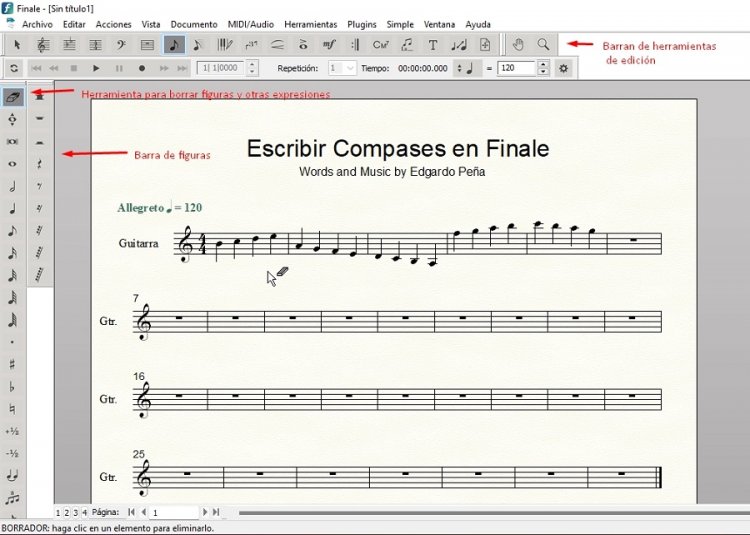
You'll notice that we've selected the quarter note to fill the 4/4 measures, since that's the most basic approach. That said, you can choose whichever subdivision best fits your needs.
Here are some examples of note subdivisions for 4/4 measures:
- Two quarter notes with four eighth notes.
- One whole note.
- Two half notes.
- One half note with four eighth notes.
- One quarter note, one half note, and two eighth notes.
Among many other combinations you might need to write measures in Finale.
Now, there's one tool that's really important: the eraser, because it helps you do exactly that—erase anything you wrote by mistake.
So, you simply position the note on the line or space you want and click.
At the same time, if you want to erase something, just select the eraser as shown in the previous image. Once you have it, hover the pointer over the note you want to remove, click, and there you go—it's erased automatically.
Writing measures in Finale: triplets
In Finale you'll find the Triplet tool, which is widely used by music students and professionals alike.
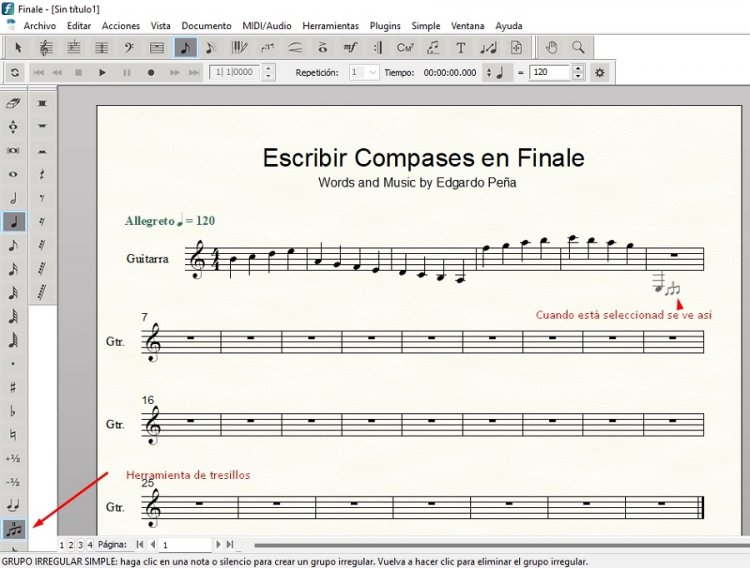
In the previous image you can see where the “Triplet” tool is located—that's the one you need to select. Once you have it on your pointer, you then choose the note that will make up the triplet.
In our case, we've chosen quarter notes, and you can see them selected in the image, but you could just as easily pick eighth notes or any other value you're interested in.
Just remember that you first need to have the triplet on your pointer and then click on the note you want in the triplet.
We invite you to reach out to us with any questions you have about how to write measures in Finale and keep expanding your knowledge.
2 Comments